
Copilot vs Copilot Studio vs Azure AI: What’s the Real Difference?

Oussama Nait-Zlay
Content Marketing Manager
Published on December 16, 2025
Updated in April 2026
If you’ve been exploring Microsoft’s AI ecosystem lately, you’ve probably noticed something. The names sound familiar, almost similar enough to blend together: Copilot, Copilot Studio, Azure AI. And after hearing them a few times, it’s completely normal to pause and wonder which one does what.
People often assume they’re variations of the same tool. Or that Copilot automatically means Azure. Or that Copilot Studio is just a settings page. The overlap in vocabulary creates a bit of noise, especially for teams trying to understand how AI fits into their daily work or long-term roadmap.
So this article aims to bring a little calm to the chaos. A clear explanation of how these three pieces fit together, why they exist, and how they support each other. Think of it as a guide that helps everything click into place. Once you see the bigger picture, the differences become obvious and the choices feel easier.
TL;DR
Use Copilot for quick wins, Copilot Studio for tailored workflows, and Azure AI for complex or large-scale projects.
-
Copilot is the built-in AI assistant inside Microsoft apps like Dynamics 365 Business Central.
-
Copilot Studio lets you customize or build your own copilots with low-code tools.
-
Azure AI is the full development platform for advanced, custom AI solutions.
The Microsoft AI ecosystem in plain language
Before getting into definitions, it helps to look at the whole setup the way Microsoft designed it. Picture the AI ecosystem as a layered toolkit rather than a single product. Each layer has its own job, and the three names we hear most often sit at different points in that structure.
Here’s the thing. Copilot is what people usually see first because it’s right there inside the apps they use every day. It feels familiar, almost like an extra pair of hands that quietly helps you work faster. Then you have Copilot Studio, which gives you a space to shape or extend those assistants so they fit the rhythm of your business. And sitting underneath everything is Azure AI, the powerful foundation developers use when they need to build something fully customized.
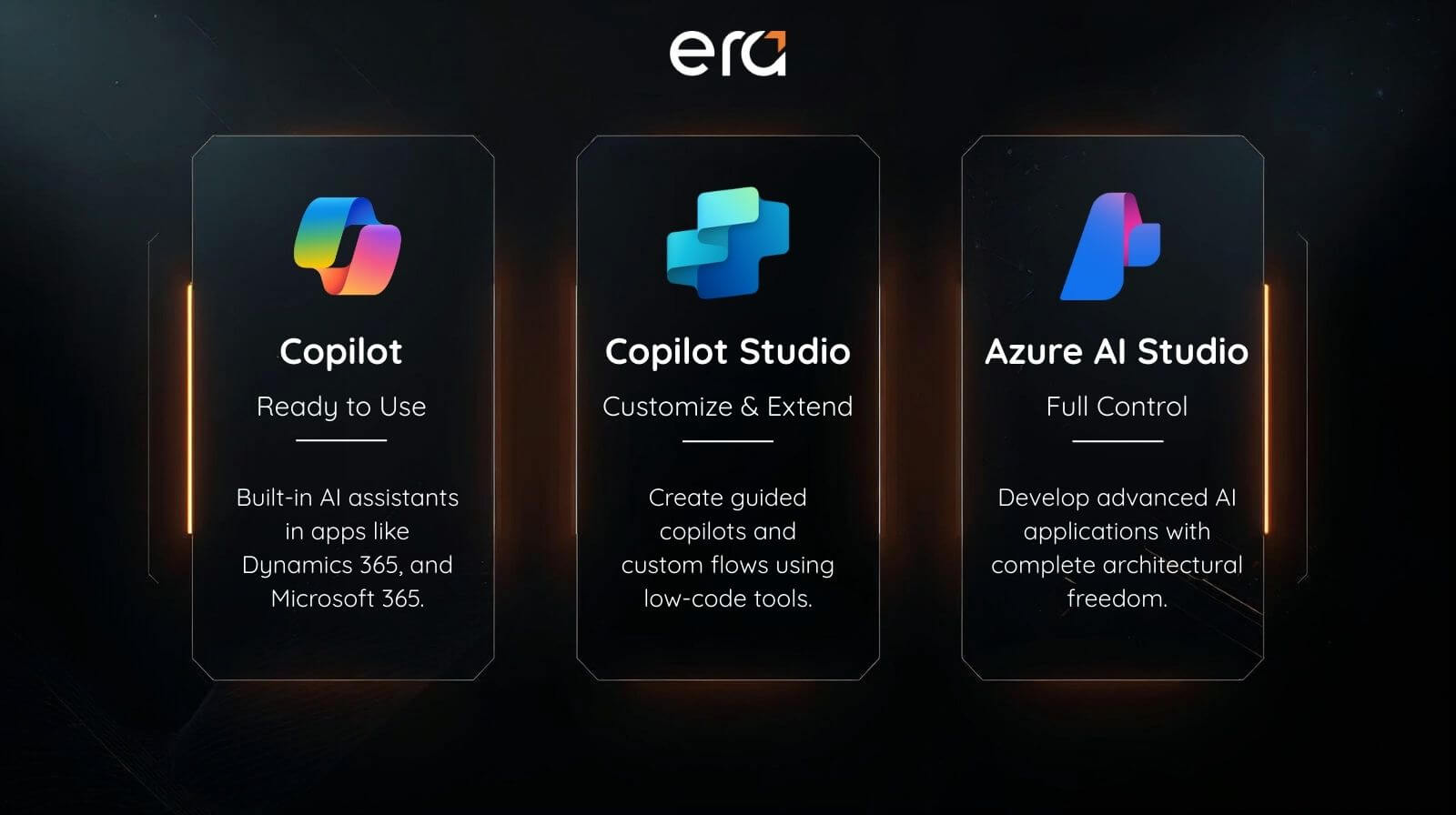
You could compare it to a workspace.
Copilot is the ready-made tool on your desk, already plugged in and ready to go.
Copilot Studio is the workshop where you tweak or create tools that match your workflow.
Azure AI is the full toolbox, packed with advanced equipment for more complex builds.
Each of these layers solves a different need. Some teams simply want AI that helps them write, summarize, or automate without changing anything. Others want something that reflects their internal processes or connects to their data sources. And some want complete freedom to build AI applications from scratch.
Once you see them this way, the vocabulary feels a little less confusing. We’re dealing with three solutions that share the same world, but they don’t replace each other. They simply work at different distances from the user.
What is Microsoft Copilot?
Copilot is the easiest place to start because you’ve probably already seen it in action. It shows up right inside the tools people use every day, like Dynamics 365, Microsoft 365, Power Platform, or even Windows. You don’t install anything special and you don’t need a long setup. It simply sits in the interface, waiting for you to ask something or trigger a task.
The idea is simple. Give every user a built-in helper that reduces the small, repetitive things that eat up time. Think writing support, data summaries, quick answers, suggestions based on context, or even small automations that run behind the scenes. Nothing flashy, just practical features that quietly lighten the workload.
In Microsoft Dynamics 365 Business Central, this becomes especially noticeable. A user might ask Copilot to clean up item descriptions, summarize a long vendor ledger, generate purchase order suggestions, or help explain financial variances without digging through multiple reports. These small moments add up, especially for teams that move quickly and rely on accurate data.
Here’s a short look at how Copilot shows up directly inside Business Central.
What makes Copilot feel so approachable is how natural it behaves. Someone might ask it to draft an email, explain a document, pull insights from CRM data, or suggest the next step in a workflow. And it answers in a way that feels surprisingly human, which is probably why people warm up to it quickly.
It’s designed for everyday business users. People who aren’t trying to build AI models or customize anything. They just want something that helps them work faster, write better, or understand information without switching between screens.
If you think of AI as a spectrum, Copilot sits on the “ready now” side. It’s a tool that delivers value immediately, without extra configuration, and without needing an IT team to set things up behind the curtain. Sometimes that’s exactly what a company needs: quick wins that feel seamless and don’t disrupt the rhythm of daily work.
When you need more than that though, that’s when the next layer starts to matter.
What is Copilot Studio?
Copilot Studio steps in when the standard Copilot experience isn’t quite enough. It’s the space where teams can shape, expand, or even build their own copilots so they reflect the company’s processes, vocabulary, and data sources. Think of it as a workshop where you’re not starting from scratch, but you have room to create something that feels like it belongs inside your business.
It works through a low-code interface, which means you don’t need a developer background to get something meaningful out of it. You can create conversational flows, connect internal systems, manage prompts, or define how the copilot should act in certain scenarios. And because it’s part of the Microsoft ecosystem, it naturally ties into things like Power Automate, Dataverse, Dynamics 365 Business Central and the apps your team already uses.
This becomes especially helpful when a business has its own way of doing things. Maybe you want a copilot that guides employees through a Dynamics 365 Business Central approval chain, helps customers with service questions, or supports a field team with quick answers. Copilot Studio lets you design those experiences without reinventing everything.
It’s also useful when you need more control. Some companies prefer to decide which data sources the copilot can access, how it should phrase responses, or which workflows it should trigger inside or outside Business Central. That added layer of customization gives them a sense of ownership without the overhead of full development.
You could say Copilot Studio sits right in the middle of the AI landscape. It isn’t as simple as the built-in Copilot everyone gets, but it’s nowhere near the complexity of a full Azure AI project. It offers flexibility without overwhelming teams, which is why so many organizations start exploring it once they realize they need something more tailored.
Now, if a company needs maximum freedom and the ability to build AI experiences from the ground up, that’s when the next layer enters the scene.
What is Azure AI?
Azure AI is where things open up completely. If Copilot is the ready-made assistant and Copilot Studio is the place to shape your own, Azure AI is the full toolbox that lets developers build advanced AI applications from the ground up. It’s powerful, flexible, and designed for teams that want to create something highly tailored or operate at a larger scale.
At its core, Azure AI provides access to a wide range of services. You’ll find language models, vision capabilities, document processing, search, data orchestration, and of course, Azure OpenAI Service. These tools let organizations build everything from automated document-extraction systems to custom chatbots, predictive models, or industry-specific AI solutions that don’t exist as ready-made products.
Because of the technical depth, Azure AI usually sits in the hands of developers, solution architects, or data scientists. They choose how the pieces fit together, which models to use, how data flows through the system, and which user experience the final product should deliver. For companies with complex processes or strict data requirements, that level of freedom is essential.
Azure AI also becomes relevant when businesses need high performance or deep integration with their existing architecture. Maybe you’re working with large datasets. Or your workflows span multiple systems. Or you need security and governance frameworks that match enterprise standards. Azure AI is built to support those scenarios without cutting corners.
What’s interesting is that Azure AI often fuels the layers above it. Many copilots, whether built-in or custom, rely on Azure in the background. It’s the foundation that gives them their intelligence. So while everyday users might never see Azure AI directly, they benefit from it every time they interact with a smarter, more responsive system.
With these three building blocks laid out, the next step is to see how they compare side by side. That’s usually where everything clicks.
A simple side-by-side comparison
Now that each piece has its place, it helps to see them next to each other. Once they're lined up, the differences become much easier to spot, and the whole ecosystem feels less like a puzzle.
Here’s the simplest way to think about it:
When you see them stacked like this, it’s clear that they don’t compete with each other. They sit on a spectrum, moving from ready-to-use to fully customizable. And depending on what a business needs, any one of these layers could be the right fit.
Which one should you choose? A simple decision guide
Choosing between Copilot, Copilot Studio, and Azure AI doesn’t have to feel complicated. Most teams already know what they need; they just need the vocabulary that matches it. Once you frame it that way, the choice becomes less about picking the “right” technology and more about matching the tool to the moment.
You can think of it like this:
Choose Copilot if
you want something that works right away and helps people get more done without changing how they work. Maybe you want faster emails, clearer summaries, or automated suggestions inside the apps you already use. Copilot gives you quick wins with almost no setup.
Choose Copilot Studio if
you need something a little more personal. Maybe your business has specific processes, unique terminology, or internal workflows that a generic copilot can’t fully understand. Copilot Studio lets you shape an assistant that reflects your world and connects to your data.
Choose Azure AI if
you’re working with complex scenarios that stretch beyond what a low-code tool can cover. It’s the choice for teams building fully customized AI solutions, managing large datasets, or needing enterprise-level controls and performance.
Another way to picture it:
-
If the goal is speed, go with Copilot.
-
If the goal is personalization, Copilot Studio fits the bill.
-
If the goal is full control, Azure AI is where the real building happens.
Sometimes companies even use all three together. They start with Copilot for fast productivity, build a custom assistant for specific workflows, and rely on Azure AI in the background for the heavy lifting. The tools aren’t meant to compete; they’re designed to complement each other.
Clearing up common misconceptions
Even with the definitions laid out, a few misconceptions tend to float around. They’re small things, but they create a surprising amount of confusion when teams are trying to make decisions. So let’s clear a few of them up.
“Copilot is one single product.”
Not exactly. Copilot is more like a family of assistants that show up across Microsoft apps. The experience feels consistent, but each Copilot is tailored to the product it lives in. That’s why the one inside Dynamics 365 doesn’t behave the same way as the one in Outlook.
“Copilot Studio is only for developers.”
People sometimes assume this because the word “Studio” sounds technical. In reality, it’s built for IT teams, analysts, and anyone comfortable working with low-code tools. You don’t need to write code to build something meaningful or guide how a copilot should behave.
“Azure AI is just a bigger version of Copilot Studio.”
This one comes up a lot. Azure AI is not a more advanced copilot builder. It’s a full suite of AI services that developers use to create entire applications. Copilot Studio sits on top of this foundation, but the two serve very different needs.
“You only need one of these tools.”
Not always. Many organizations use them together. Copilot handles everyday tasks, Copilot Studio shapes internal experiences, and Azure AI supports large-scale or highly specialized solutions behind the scenes. It’s more of a layered ecosystem than a “pick one and ignore the rest” situation.
“Everything requires a long setup.”
Copilot doesn’t. That’s kind of the point. Copilot Studio requires some planning, yes, but nothing overwhelming. Azure AI is the only layer where true project design is needed, simply because you’re building something from scratch. The rest stays intentionally user-friendly.
By clearing up these assumptions early, teams usually find it easier to understand what they actually need.
Real scenarios businesses will recognize
Sometimes the fastest way to understand these tools is to picture them in everyday situations. Here are a few examples that mirror what many organizations deal with, whether they’re in manufacturing, distribution, services, or any operationally driven industry.
Scenario 1: Your team spends too much time gathering information
Maybe sales reps jump between CRM records, emails, and Excel sheets just to prepare for a meeting.
With Copilot, they can ask for a quick account summary, recent interactions, or follow-up suggestions. No extra configuration, no extra steps. It simply helps them get ready faster.
Scenario 2: You want a guided internal process that matches how your company works
Let’s say your procurement team follows a unique approval flow inside Dynamics 365 Business Central with specific rules. custom fields, or conditions that don’t translate well into a generic assistant.
That’s where Copilot Studio steps in. You can build a copilot that guides employees through each approval step, checks vendor or item data from Business Central in real time, and answers internal questions using your terminology and structure.
Scenario 3: You need an AI solution that goes far beyond conversational tasks
Think about advanced scenarios like automated document classification, large-volume invoice extraction, predictive maintenance, or a custom chatbot that handles thousands of inquiries.
This is where Azure AI shines. Developers can mix models, data sources, and services to build something specialized that simply doesn’t exist as a ready-made tool.
Scenario 4: You want everything to work together
A company might start with Copilot in Dynamics 365 Business Central for quick productivity gains, then create a custom assistant through Copilot Studio to manage internal workflows, and finally rely on Azure AI behind the scenes for large-scale document processing or custom predictive models.
The three layers fit naturally, almost like puzzle pieces designed to work as a unified ecosystem rather than scattered tools.
What these scenarios show is that the choice is about matching the tool to the level of customization you actually need. Some teams want an assistant that just works. Others want something shaped around their processes. And others need full creative freedom.
So where does this leave us?
Once you see how Copilot, Copilot Studio, and Azure AI fit together, the whole picture feels much clearer. They’re not competing tools or different versions of the same idea. They’re layers of the same ecosystem, each designed for a different level of need.
Copilot gives you immediate value, right inside the apps your teams already use, including Dynamics 365 Business Central.
Copilot Studio lets you shape experiences that reflect your own processes and create assistants that feel native to the way your organization works.
Azure AI gives developers the freedom to build solutions without limits, especially when the goal is something advanced or highly specialized.
Most organizations don’t stay in just one layer forever. They start with the ready-made assistant, customize what matters, and eventually explore deeper AI projects as their needs grow. And for companies running Business Central, that journey often feels even smoother because so much of the foundation is already in place.
FAQs
Is Copilot included with Dynamics 365 Business Central?
Copilot features are available in Business Central, but the availability depends on your licensing and your region. Some capabilities are included, while others may require additional licenses or activation from your administrator. Microsoft continues to expand what is included natively.
Do I need Copilot Studio to customize Copilot in Business Central?
Not always. The built-in Copilot handles many common tasks automatically. You only need Copilot Studio if you want a custom experience such as guided processes, internal Q&A, or copilots that connect to your unique data sources and workflows.
Does Copilot use my company’s data, and is it secure?
Yes. Copilot uses the data you already have access to in Business Central or other Microsoft applications. It follows the same security, permissions, and compliance rules already in place in your Microsoft environment. Users only see information they are authorized to see.
Can Azure AI be used without a development team?
Azure AI is powerful, but it typically requires developers or technical specialists. If your organisation does not have a technical team, you can still use Copilot and Copilot Studio, which are designed to be more accessible and user-friendly.
Can I use all three tools together?
Yes. Many companies use Copilot for quick productivity gains, Copilot Studio for internal customisation, and Azure AI in the background for advanced scenarios such as document processing or predictive analysis.
How do I know which AI solution my business actually needs?
It depends on the level of flexibility you want. Copilot is great for immediate value, Copilot Studio is perfect when your processes need personalisation, and Azure AI is ideal when you need full control. If you're unsure, a short discovery call with an expert can help you map the right path.

Your AI Journey Starts With One Conversation
Not sure where to begin with AI? We can help you find the right approach for your business and your systems.
Speak with an expert
Oussama Nait-Zlay
Content Marketing Manager
Oussama is a technology content expert at Era Consulting Group. He focuses on making complex topics related to ERP and enterprise technologies accessible, helping organizations fully leverage digital innovations. He brings several years of experience in the SaaS and technology industries, notably with companies such as Zoho and ManageEngine.
Follow Oussama Nait-Zlay
Featured